See exactly what changed.
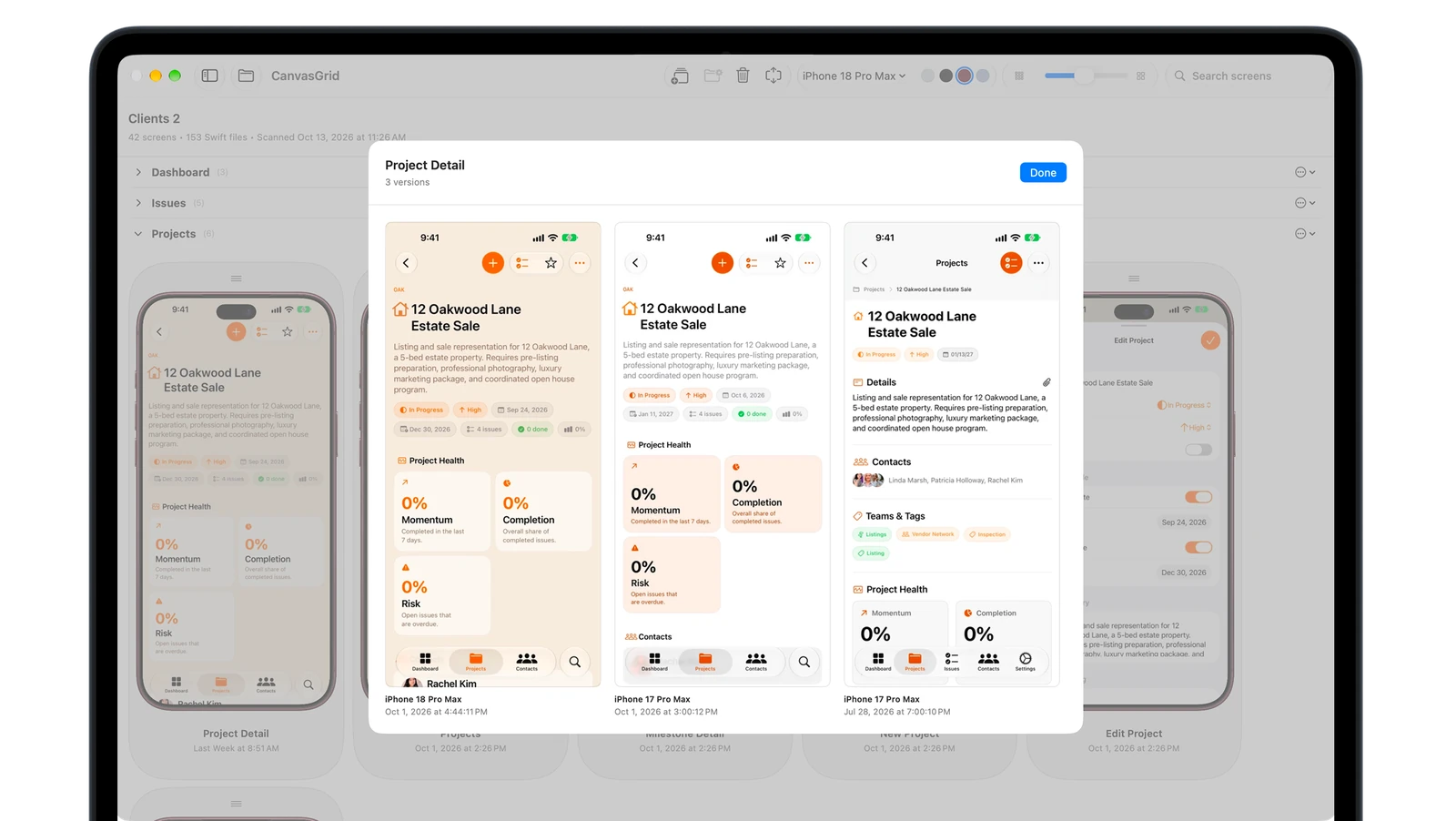
Every capture becomes a saved version. Compare the same screen over time, or across the devices you own.
CanvasGrid 2.0Available on FREE upgrade for v1 users
Your whole app, at a glance
Every view of your app, in one resizable grid, automatically organized and exportable. Updated automatically with one command.

Buttons that don't match. Spacing that drifted. Screens you haven't looked at in weeks. CanvasGrid puts them together and the differences jump out.
Every capture becomes a saved version. Compare the same screen over time, or across the devices you own.
Zoom into your grid and catch the mismatched buttons, spacing, and details you'd miss one screen at a time.
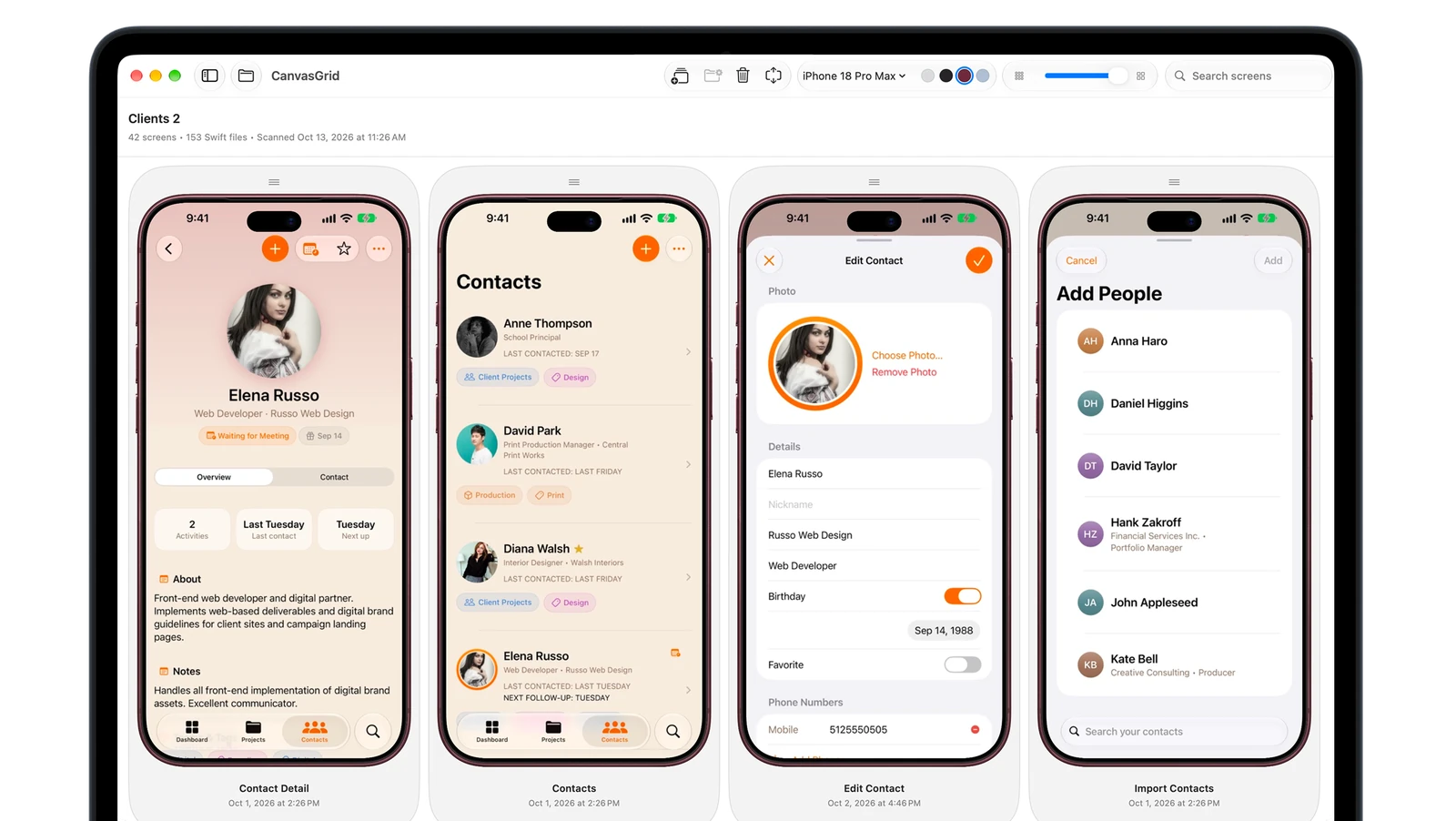
New in 2.0, Organize by Folder groups screens to match your project's folders in one click. Sections you've already made stay as they are.
New in 2.0
Skip the previews and the clicking through files. Set up once, then tell your coding agent to “update CanvasGrid.”
Open your Xcode project folder in CanvasGrid and run your app in an iPhone simulator.
Copy the setup prompt into your coding agent. It marks your screens and captures them from the simulator.
CanvasGrid picks up each screenshot automatically. Make changes, ask your agent to update, and the board catches up.
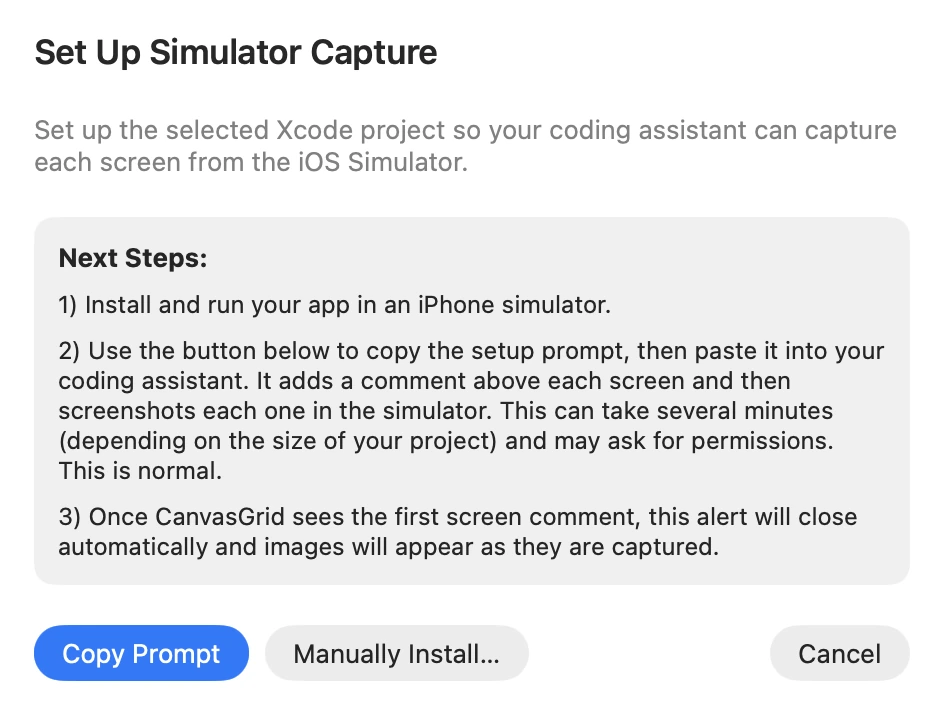
No preview wrappers. No dependencies added to your app. Just a comment above each screen.
See how your layouts hold up on different iPhones. Capture on each device, compare the results, and export in its bezel.
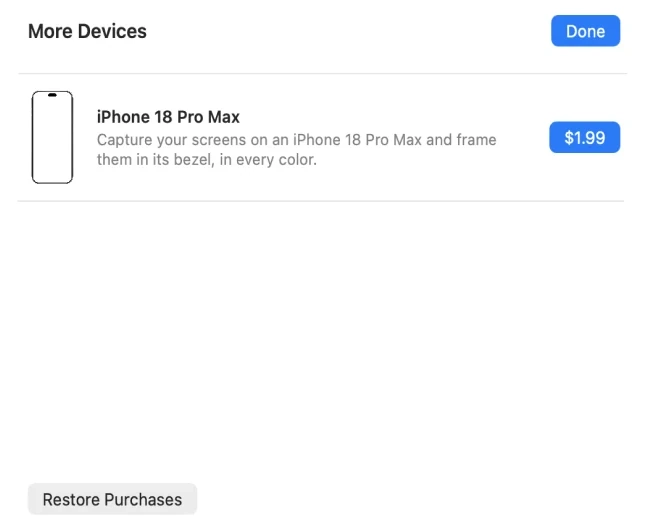
Silver, Deep Blue, and Cosmic Orange. Everything you need to get your grid started.
Silver, Black, Burgundy, and Glacier.
$1.99, one time. No subscription.
iPad is next. More device modules are on the way.
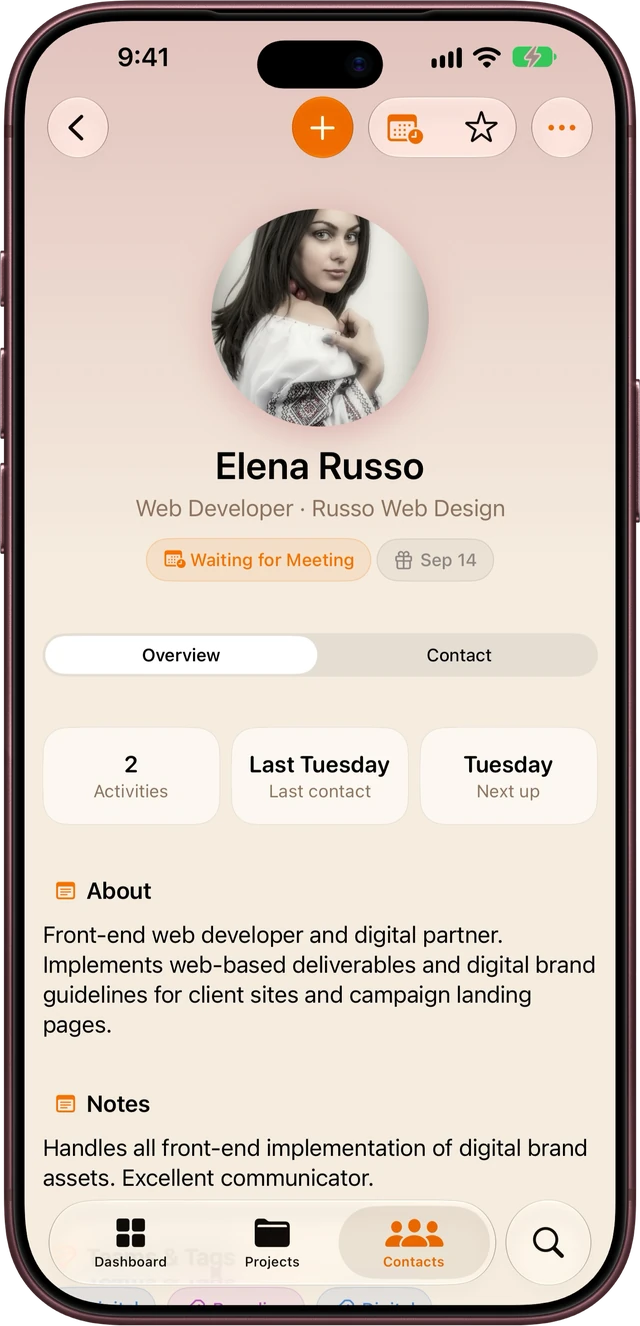
Export any screen as a transparent PNG inside an iPhone frame. Ready for the App Store, your portfolio, or your next announcement.
Want the image without the frame? Every capture lives in a CanvasGrid Images folder inside your project, organized by device. Drag it into your design tools and get to work.
Anything else? Ask David.
Yes. CanvasGrid 2.0 is available on October 30th as a FREE upgrade for v1 users. Additional device modules are optional one-time purchases.
Use a coding agent that can run commands in your Xcode project and interact with the iOS Simulator. CanvasGrid gives you the setup prompt to paste into your agent.
No. In 2.0, your coding agent captures real screenshots from your running app in the iOS Simulator. You don't have to build previews for CanvasGrid.
They're kept. Open your project and run the upgrade prompt. Your saved versions and screen names are preserved, and your images move to the new setup automatically.
Into the CanvasGrid Images folder inside your Xcode project, with a subfolder for each device. Use them directly or export framed PNGs from CanvasGrid.
A Mac, a SwiftUI project in Xcode, an iPhone simulator, and a coding agent that can run commands in your project. You don't need Figma or a separate design file.
CanvasGrid does not collect, store, or share any personal data. All entries are stored locally on your device and are never sent to a server. We don't track you, and we don't sell your data—because we don't have it.
CanvasGrid uses Apple's default end user license agreement, which can be found here.
CanvasGrid 2.0
Available on
FREE upgrade for v1 users.